Showing posts with label Computer hacks & software. Show all posts

Monday, 8 August 2016

Zip or Unzip a File or Folder in Windows 7


Windows 7 has a built-in program that allows a file or folder to be compressed. This would allow the file or folder to be sent via email or put on a server faster.
Folders that are compressed using the Compressed (zipped) Folders feature use less drive space and can be transferred to other computers more quickly. You can work with a compressed folder and the files or programs it contains just as you would an uncompressed folder.
Please be cautious of opening .zip files from unknown mail recipients since .zip files can contain viruses. Confirm with the known sender before opening the .zip file.
Installing a different compression program to Windows may remove Compressed (zipped) Folders from the right-click menu choices and replace it with the new compression program's icon.

How To Zip a file or folder

  1. Select the file or folder you want to compress
  2. Right click and choose Send To
  3. Slide Right and choose Compressed (zipped) folder
  4. Allow the file or folder to compress
  5. You should now see an icon with the same name plus a .zip extension. It may have a zipper on the folder.
  6. Rename the file if you'd like
  7. This is the compressed file that you may put on the server or send via email

How To Unzip a file or folder

If you receive a Zip file, you need to uncompress or unzip the file to use it.
  1. Right-click on the Zip file and choose Extract All
  2. Choose a location for the folder to be extracted into
  3. If you checked "Show extracted files when complete", the files or folders within the Zip folder appear. If you unchecked the box, a folder or file with the same name (without the Zip) should appear.
  4. This folderwill be your working copy of the data from the Zip file.
  5. You may keep the Zip file or delete it.

Friday, 22 July 2016

Top 7 Questions to Ask an IT Company BEFORE you hire them!

Top 7 Questions to Ask an IT Company BEFORE you hire them!

Before you hire a computer nerd, read this?

1. Do you OUTSOURCE your Help Desk?

Many larger companies outsource their helpdesk overseas. You may be talking to someone in another country with no knowledge of your operations or your area. TMPros has techs on-site in all of our service areas. We have a Central Help Desk in California and Nevada where our knowledgeable technicians get to know each client. Our on-site techs are very, very familiar with each client so you get personal support.

2. Do you have MONITORING SOFTWARE?

Why monitoring software is so important is it accomplishes two things. First, it alerts your IT company to problems before they occur. Secondly, it alerts your IT company to server, router, switch outages, so they can quickly respond.
TMPros goes a step further. We have server, switch, desktop monitoring software and it includes managed anti-virus software, automated patches, and much more. We keep your systems and your networks up to date. With Crypto-locker and other ransomware decimating American businesses, you have to know your anti-virus is working. You also have to know your backups have worked. If your IT company isn't managing the anti-virus and monitoring the backups... you could be in for a HUGE surprise.

3. How Much Experience Does Your IT Company have with CLOUD Computing and Storage?

This is important because if cloud storage and virtual servers and PC's are hosted by an unknown company, maybe overseas, you have no idea how safe your data is.
TMPros has a partnership with our cloud storage provider and we serve as a front line service provider for them. We are the A-team they look to for high end data center issues and customer delivery issues. TMPros manages hundreds of virtual servers and thousands of virtual PC's on a daily basis.

4. Do you have SENIOR level techs manning your HELPDESK?

If a prospective IT company has junior techs trying to do a job, and they spend a lot of time fixing your issues, you lose productivity. It doesn't matter what they cost... it matters what they cost you in lost time.
TMPros has experienced, certified techs at every level of our help desk tiers. We even have a tier one tech with a Masters in Information Security to ensure our customers get excellent support at every level. We pay our techs more than the industry average to maintain continuity. and, we have a solid escalation system and team approach to ensure every user gets their problem solved in a timely manner.

5. What's your experience in MY Industry?

Because some IT companies are good at one area of business.... it just doesn't make them good in other areas. And, some are good with retail customers, but just don't know business at all.
That's where TMPros excels. We have three principle owners who have approximately 50 years of combined experience across many industries including professional services, medical, construction, real estate, logistics, transportation, non-profit, and more. We have a business development and marketing division who have helped hundreds of businesses just like yours grow.
Find out not how long they have been in business, but how much they've worked with businesses like yours and what they understand.

6. Will you put your RESPONSE TIME in Writing?

You can ask an IT company about response times, and they will all tell you theirs are GREAT! But, that's just like a used car salesman. Get it in writing!
TMPros puts it all in a service agreement with service levels so you know what to expect. And, our goal is to always meet or exceed our promise to our customers. But, what makes life great for our customers, is we solve the majority of IT problems over the phone with our remote software. That saves TIME and PRODUCTIVY. When we do go on-site, our qualified technicians have guidance from our senior staff to find and solve your issues in a timely manner.

7. Can you speak PLAIN English?

One of the biggest problems IT guys have is they just can't communicate what the problem is to normal people. The other is a lack of social skills.
At TMPros, we are a team of regular guys who just happen to have skill sets in the area of computers. Our techs are friendly, socially acceptable, and incredibly gifted in the art of problem solving. We hire problem solvers first, and give them experience in business computing. What you get is a smart, regular guy, who can fix your problems both fast and courteous. You'll like our techs. We are nerds... but we're not geeks.

Why Hire a TEAM over an IT Guy?

If you're looking to replace an existing IT guy or even a Director of IT, now is the time to think about hiring a team instead of that guy. The advantage is a TEAM doesn't call in sick nor does it take vacation for a week. You get decades of high level CIO experience to solve your biggest problems and plan for the future. You also don't pay a team to surf the web. When you hire TMPros as your IT staff, you pay one affordable monthly price that's usually lower than an IT guy, with the combined knowledge of some of the brightest minds in the industry.

Information Technology

 IT is not as easy as people think

Perceptions

So, you work somewhere, maybe a school, university, a hospital or corporation, that requires the daily use of a computer or some other form of technology. Without this technology, your job could not be done (easily at least). Each day, you goto work, turn on your computer (make some coffee) and begin your daily routine. You know exactly what you need to do, because you do it everyday without giving it a thought.
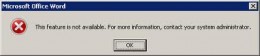
You go to open and print a document that you need for an important meeting that is in an hour, but instead of the normal routine that you are used to, the computer decides to mock you with an error. "The feature is not available. For more information, contact your system administrator.
Now your thinking, "Ok, I need this file, and who IS my system administrator???". You call the helpdesk and begin your confrontation with what seems like a barrage of questions.
Helpdesk: "Hello, thank you for calling the IT helpdesk, may I have your first and last name please?"
You: "This is Mr. Doe.... I have a very important file that I need for a meeting that said that I needed to contact my system administrator. Is that you???"
Helpdesk: "No sir, this is the helpdesk, may I ask what what your computer name is?"
You: "They have names?" Who named it?"
Helpdesk: "Sir, if you look at your computer screen and note the icon that says something like 'MrDoe on SomeName'
You: "I don't understand. Can't you just make my file work? I need it now!"
Helpdesk: "Sir, I need to get some additional information from you before we can send a technician"
You: "Uggh!"
Anyway, these question will usually result in a technician being dispatched to your office to resolve whatever issue you are experiencing. These technicians often work at the lack of proper information, especially, if the person having the problem, is not technically savvy. This is why IT Services exist.
As it turns out, there was a feature of Microsoft Word that was not installed that your document needed, and the technician was able to install this rather quickly.

The Reality

I have been working in the Information Technology field for twelve years, the greater portion of that being in education. I love my job, the people I work with/for as well as the environment. It gives me a great sense of pride to know that I am doing my part to provide an engaging environment in which students can learn and grow. This isn't to say that my job is easy in any way.
It is a common misconception that IT is a bottomless money pit. Business see's that IT uses a lot of the organization's funds, however they do not see the benefit of that expenditure. There are a great many things that the decision makers do not see 'behind-the-scenes' that make it all happen. This unfortunately costs money. The trick in all of this is to make the services that IT provides as inexpensive and efficient as possible. One of the expenditures that are most overlooked, is training. "Training?" you say? Yes... Training. Sadly, we do NOT know everything.
Within my organization, my team supports over five hundred different software titles, with more being added everyday. The difficult part of this, is that our customers/users, believe that we should know how to use each and every one of those pieces of software fluently. Yes, I am a technician, however, I could not possibly tell you how to create a mail-merge in Microsoft Word, nor can I tell you which feature of AutoCad can append dimensions to objects. I did not go to school to learn any of these things. What I did learn however, is to make sure that these programs function correctly, and when they don't, I know what resources to use to correct the issue.
Another item that is often misunderstood, is the amount of time that some software takes to install. After receiving a request to install the newest version of AutoCad by a customer, they literally gasped when I told them that they would not be able to use their computer for almost three hours. While yes, there may only be a few clicks of the mouse to install the software, it's what happens between those clicks that takes time. A complete install of AutoCad for instance, starts from several DVDs. Each of those DVDs contain roughly 4.5GB of data, and this is compressed. All of this data during the installation, must be decompressed and copied to the correct locations on your hard drive.
Licensing is another issue that many people do not understand sometimes. To use a specific piece of software on your computer, your organization must own a license to run that software. I constantly receive requests for software to be installed on a computer, and when I ask if a license has been purchased, the conversation gets heated at times. The first statement that is usually made is: "Well my office mate has this installed...why can't you just put it on my computer too?" The answer to this question, is simple.... It would be illegal. It takes a lot of time and energy to manage software licenses, not to mention, a server to run these licenses on at times. Remember the section where I talked about money? This is a prime example.
The biggest hinderance between IT and helping customers is getting the correct information. When customers call the helpdesk, they often expect instant gratification. They expect their issue to be resolved right then and there and either do not understand or don't care if there are people ahead of them in the queue. It is human nature to believe that each one's self should be number one. This often leads to a breakdown in communication as well as the initiation of some heated conversations. The IT helpdesk is there to help, however without the proper, complete information, it make the resolution take that much longer. So the next time you call the helpdesk, and the questions start flowing, remember that they all have a reason and a purpose; to get your issue resolved as quickly as possible.

Creating a Better Relationship

All of the things that I have discussed above usually create a bad relationship between IT and it's customers. The key to making that relationship better, is to change behaviors and help customers to understand their environment. This takes a lot of research, patience, perseverance as well as time. I try to meet with my customers in person on a regular basis to see how they are using technology and evaluate what gaps are in the technology sets that they feel need improvement. After I know what it is that they are looking for, I search for solutions that will provide the outcome that they are looking for and let them know what the cost is to provide the service that they request.
I have a very good relationship with my customers where I work, and although we may have our disagreements at times, we always reach an agreement and find a solution that meets the business needs.
Information Technology may be a services based organization, but the payment for these services isn't in money. It's in relationships. Growing the relationships and building a better environment is what makes everything that much more worthwhile

Applications of Computer Network

Applications of Computer Networks
These are network software applications that utilize the Internet or other network hardware infrastructure to perform useful functions for example file transfers within a network.
There are 2 types of network applications:-
  1. Pure network applications
  2. Standalone network application

(A) Pure Network Applications

These are applications created to be used in networks; using pure network applications on a single computer doesn't make sense. Such applications have a separate and distinct user interface that users must learn for instance:-

1. Email programs

They allow users to type messages at their local nodes and then send to someone on the network. It is a fast and easy way of transferring mail from one computer to another. Examples of electronic mail programs (Clients) are:-
  • Pegasus mail
  • Outlook express
  • Eudora Windows mail
  • Fox mail
  • Opera
  • Poco mail
  • Mozilla Thunderbird
  • Windows mail

2. File transfer protocol (FTP)

This application facilities transfer of files from one computer to another e.g. from a client to a server. There are 2 common processes involved in FTP
Downloading: - This is the process of obtaining files from a server to a workstation or a client (for example when you download programs and music from a server).
Uploading:- This is obtaining of files from a workstation to a server (for instance when you attach documents and upload them to a server, a good example being when you upload photos to Facebook).
Examples of FTP programs are:-
  • FTP in Unix
  • FTP in Linux or
  • FTP in Windows

File Transfer Protocol Process

File transfer protocol process
Mozilla thunderbird

3. Terminal Emulation (TELNET)

It allows a workstation to access the server for an application program. This enables you to control the server and communicate with other servers on the network. The workstation appears as a down terminal that is directly attached to the server. The user feels like he/she is using the server directly. TELNETenables PCs and workstations to function as dumb terminals in sessions with hosts on inter-networks.

4. Groupware

These applications are used to automate the administration functions of a modern office for instance video conferencing and chatting. They facilitate the work of groups and improve on their productivity; they can be used to communicate, co-operate, coordinate, solve problems, compete, negotiate among others.

(i) Video Conferencing

This is the process of conducting a conference between two or more participants at different sites by using computer networks to transmit audio and video data. For example, a point-to-point (two-person) video conferencing system works much like a video telephone.
Each participant has a video camera, microphone, and speakers mounted on his or her computer. As the two participants speak to one another, their voices are carried over the network and delivered to the others speakers, and whatever images appear in front of the video camera appear in a window on the other participant’s monitor.


(ii) Chatting

It is a real-time communication between two users via computer. Once a chat has been initiated, either user can enter text by typing on the keyboard and the entered text will appear on the other user’s monitor. The two must be online for a chat to be initiated. Most networks, cybers and online services offer a chat feature which enables computer users to chat as they go on with their work.

(B) Stand Alone Applications

These are applications that run on stand alone computers (computers not connected to any other). In order to extend their activity, they are rebuild to run on network environments e.g. word processors, spreadsheets, database management systems, presentations graphics, project management etc. They function even when the computer is offline.

Connecting Two Computers With USB

Connecting Two Computers With USB

Your children will never know a world without USB drives . . .
There are few things in this life with which I am unapologetically enamored. I won't go into my bizarre list of eccentric joys (you don't care that I love "People of Wal*Mart" or ridiculous conspiracy theories) but I will say with vigor that I love, love, love Universal Serial Bus, or USB, technology. Parallel, serial, GPIB, and communications ports express great sorrow at that last sentence.
USB ports, connectors, and cables are so engrained in our culture that every device comes with some sort of USB functionality. You never see floppy disc drives and even serial ports are a rarity on most new computers but those USB ports keep multiplying like rabbits. Computers come with multiple USB ports since all of the peripherals now run off of USB connections. USB hubs can be purchased with seven ports (and there are some out there with even more.) Phone chargers are now two-in-one with USB capabilities. The list of possibilities with USB cables is near endless . . . so it is concerning when one encounters an application where USB just will not do . . . or will it?
A typical, organized, desktop

The Challenge of Connecting Two Hosts

Recently I was entangled with a dilemma in which I needed to transfer data from, essentially, one hard drive to another. A piece of equipment in the laboratory would make a measurement and record the results in a file internal to its own hard drive. I had created an Excel program, slopped together through Visual Basic coding reminiscent of a Frankenstein creation, and needed to extract the data from the measurement device and utilize it with my program. Previous to that point, I used a USB flash drive because, as stated, I love all things USB. I would load the data onto the stick, physically transport it to the computer, and then upload it into my, for lack of a more appropriate term, 'program.' This became tiresome . . . and hilarious when a colleague turned around in his chair and bent the flash drive in half with his knee. It still worked, though it was (by that point) an 'ergonomically structured USB drive.' In business terms, there was an extremely poor 'economy of motion' involved with this process and, add to that, the USB flash drive would change drive letters based on whoever was logged into the PC (my program would only search for a specific drive letter.)
So what was a handsome, witty, brave, and modest gentleman such as myself to do? The initial reaction was to simply link the two through an Ethernet connection but the issue with that proposal was that the piece of equipment was rather expensive and we did not want any random person communicating with it. Plus the red tape and litigation that would ensue from placing an unknown object on the network would probably give me a headache and get the entire operation shut down. We were also limited due to my lack of knowledge in regards to coding associated with serial and GPIB ports. Essentially I only knew how to find, save, copy, and delete files - transporting discrete data was an unknown to me (and still is.) With IT and my own brain working against me, I turned to my old friend, USB.

USB Architecture

USB architecture consists of a host and a device. In most cases, your computer is a host while your webcam / iPod / printer / scanner / mouse / keyboard / etc. is the device. With a USB, data is dumped from one to the other with the host essentially calling the shots and telling the device what to do. Wikipedia states it more eloquently:
"The host controller directs traffic flow to devices, so no USB device can transfer any data on the bus without an explicit request from the host controller. In USB 2.0, the host controller polls the bus for traffic, usually in a round-robin fashion. The throughput of each USB port is determined by the slower speed of either the USB port or the USB device connected to the port."
What about, say, your phone? It can connect to a computer as a device but, with the right connectors, it can also act as a host to other devices. This is becoming more and more common as products become more versatile and interchangeable. Luckily, Engineers and Programmers are always in step with demands (or at least trailing closely) and created USB-On-The-Go (USB OTG) which essentially allows USB connections for that very concern. Now, products with USB OTG can act as either the host or the device, dependent upon the configuration.
Not included in USB architecture, though, is host-to-host communications which does not bode well in this day and age of 'well, why not?'
A simple representation of a USB bridge cable connection
A simple representation of a USB bridge cable connection | Source

USB Host-to-Host Connections

Thankfully it is possible to connect two 'hosts' but one must exercise caution and carefully read the product package when choosing the proper USB cable. There are USB cables in existence which have Type A plug connectors on both ends and physically will plug into two hosts without any mechanical resistance. These areNOT to be used; directly connecting two hosts with one of these 'straight' connector cables will potentially destroy both the port and/or the power supply associated with each host USB. Again, DO NOT CONNECT TWO HOSTS WITH A STRAIGHT-THROUGH USB CABLE.
Now that I've got that out of my system, I can tell you about USB Bridge cables. USB Bridge Cables, sometimes referred to as USB transfer cables or USB Host-to-Host cables, do connect hosts but not directly as one might desire.
Essentially, the bridge cable has hardware within it which acts as the 'device' to both hosts. Software is utilized on both machines to transfer files and data between them but with the caveat that the bridge circuitry acts as the messenger, or middleman. To use this, one must use software provided with the USB bridge cable to perform 'drag-and-drop' functions from folders on the host and folders on the bridge device. The only issue one might have with this, as I did, is that the bridge cable device that appears as a drive under 'my computer' is not, for lack of a better term, 'explorable.'
For instance, the shoddy program I created would look for files in a specific folder but could not open and access the USB Bridge cable drive because it is not merely a drive, it is a program. This would have added the step of me having to transfer data on my own to a known folder for the program to work. Neither my program nor the USB bridge cable was at fault - it was merely an instance of trying to slam a square peg into a round hole.

Conclusion

USB bridge / transfer cables are useful for host-to-host applications where the user does not want to take the trouble of setting up a network via Ethernet. The drawback is that it is still not a 'straight' connection, requiring a device within the bridge to transfer data. This may be troublesome for the individual who does not want to drag and drop files from the bridge device to the host but I imagine the number of people who would be irritated by this includes myself and maybe one or two others.
USB, in this case, did not do the trick for me. I ended up using the network (*gasp*) but made sure to password protect the measurement equipment. I additionally setup the measurement equipment so that only one computer at a time could explore the specified folder on the machine. I learned a lot about USB in the process, though, and knowledge is power . . . or something like that.

Speed Up Your PC Without Downloading Anything

Speed Up Your PC Without Downloading Anything

Generally speaking, you do not have to download anything to speed up your PC. There are good utilities you can download that make the job much easier. So why wouldn't you download a utility to do it for you? There are a couple answers to this question. Perhaps you cannot access the internet on a specific computer. Perhaps you do not trust the download. Or maybe you just do not like to download things. Well there are a couple ways you can speed up your computer without extra software.
If you do not have anything against downloads, check out my article on speeding up your PC with CCleaner here.
The main two reasons that PCs get slow are 1) unnecessary programs that startup with the computer, and 2) useless or corrupted files that take up space. I will explain how to:
1. Delete Temporary Files
2. Defragment the Computer
3. Remove Unnecessary Programs
4. Disable Unnecessary Startup Programs
Unfortunately, another thing that slows computers down is issues with the registry. Windows does not have a utility for fixing or defragmenting the registry. So to fix the registry you need to either edit individual entries, or download registry cleaners or defragmenters.

Step 1: Delete Temporary Files

There are many ways that temporary files show up. Anything you do on the internet leaves temporary files. Most things you do off the internet do to. Windows has a utility to fix this called Disk Cleanup.
To access Disk Cleanup, first open the start menu. Then click All Programs > Accessories > System Tools. Within the system tools folder, you will find Disk Cleanup. Click on that.
The Disk Cleanup will scan your computer. Then a dialogue box with open. In the Files to delete section, check every box. Then click "OK". Click "Delete Files" when asked if you are sure. It will then clean your disk.

Step 2: Defragment the Computer

You computer does not automatically place all files in the best places. Files that should go together, sometimes do not, making them harder to access. This issue is called fragmentation. This slows down your computer because it takes longer for the computer to find files. How much this slows down your computer is no doubt, a topic of debate. But, there is no question that it does. Windows has a deframenter utility.
To access this utility, go back to the System Tools folder within the start menu. In this folder you will find a utility called Disk Defragmenter. Open it.
A dialogue box will open. This box gives you some information. It tells what drives can be defragmented, and when they were last defragmented. Click on the (C:) Disk. Click Defragment Disk, at the bottom of the window. As it is defragmenting, it will show the progress in the progress column of the current status window. After the defragmenting finishes, Close the window.

Step 3: Remove Unnecessary Programs

Extra programs that you do not use just take up space. Many of them will run in the background in hopes that you will one day use them. This can make your computer painfully slow. The two most common types of applications that slow down most PCs are 1) third-party internet browser toolbars, and 2) extra application plugins. In addition, sometimes people will install applications thinking they will use them but never do. Or they install a program for temporary use or to experiment with, then forget to uninstall it. Regardless of the reason, their may be programs you want to install, or do not even know you have, and Windows has a great built in utility to uninstall these programs.
To access this utility, open the start menu and type "Uninstall". There will be a section that says Control Panel. Under that section, there will be a utility that says Uninstall a program. Open it.
Then, the Programs and Features dialogue box will open. Look for programs you do not want, and select them. After they are selected, click Uninstall. For most programs an uninstall wizard will popup. Run through the wizard to uninstall the program. Repeat this process for all programs you do not want.

Step 4: Disable Unnecessary Startup Programs

Many programs will start running in the background when you start your computer. This is so that when you want to use the program, it will open much faster. The problem is that every program you install hopes that you will use it everyday. This is another reason you PC may be running so slow. The Windows utility that allows you to disable these programs is called System Configuration (or msconfig).
To access this utility, open the start menu and type msconfig. Open the program named "msconfig". On the System Configuration window, go to the Startup tab. Look through the list for programs that you know what they are, and do not need starting up with the computer. Uncheck all programs you do not need and click Apply. Then click OK.

Step 5: Restart Your Computer

To ensure that each of the previous steps yields permanent changes, restart your computer.